
Tips Today
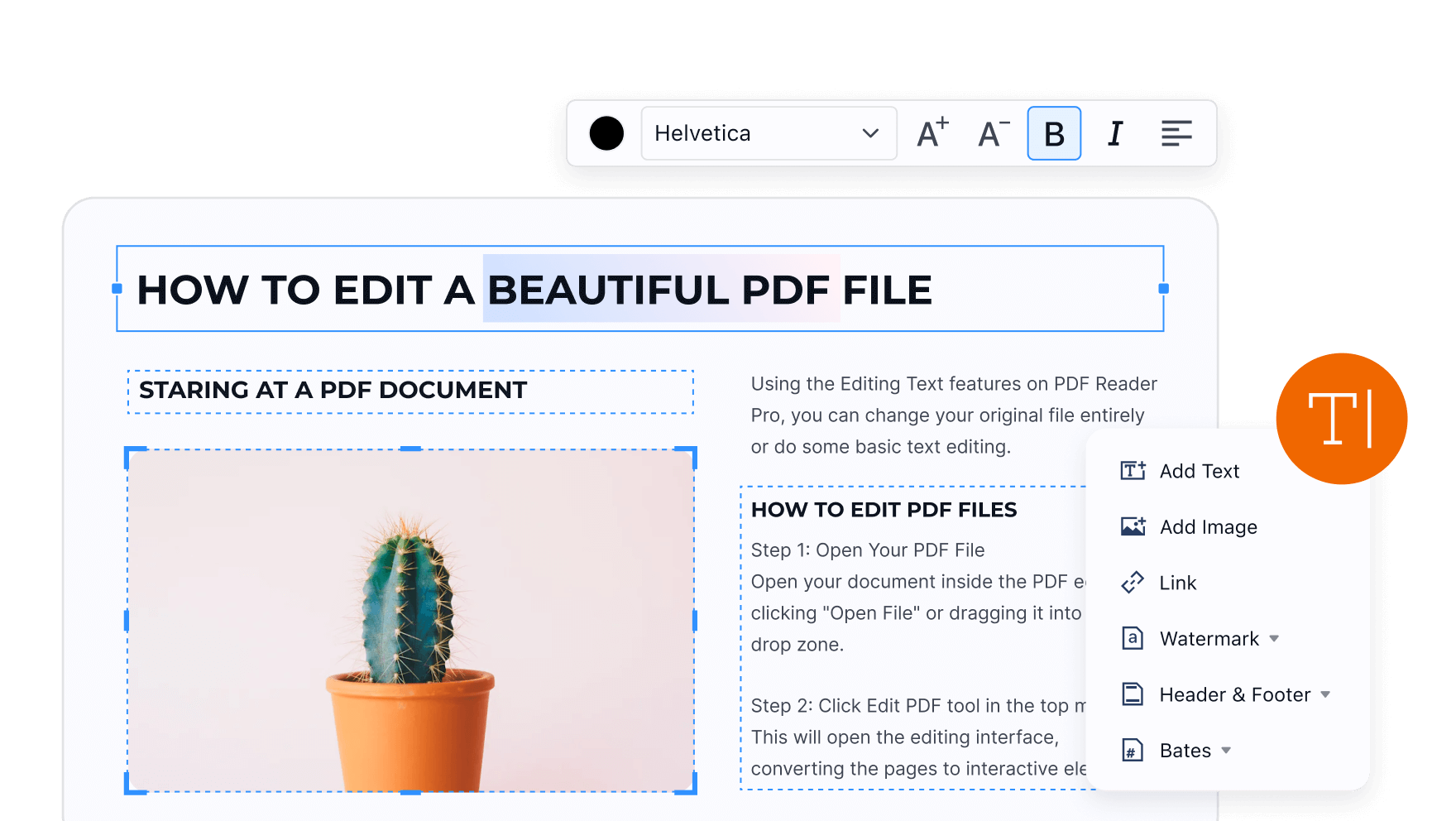
No need to recreate the file. No need to convert PDF to Word first.
With PDF Reader Pro, simply click “Edit” in the toolbar and directly modify text inside the PDF, while preserving the original layout and structure.
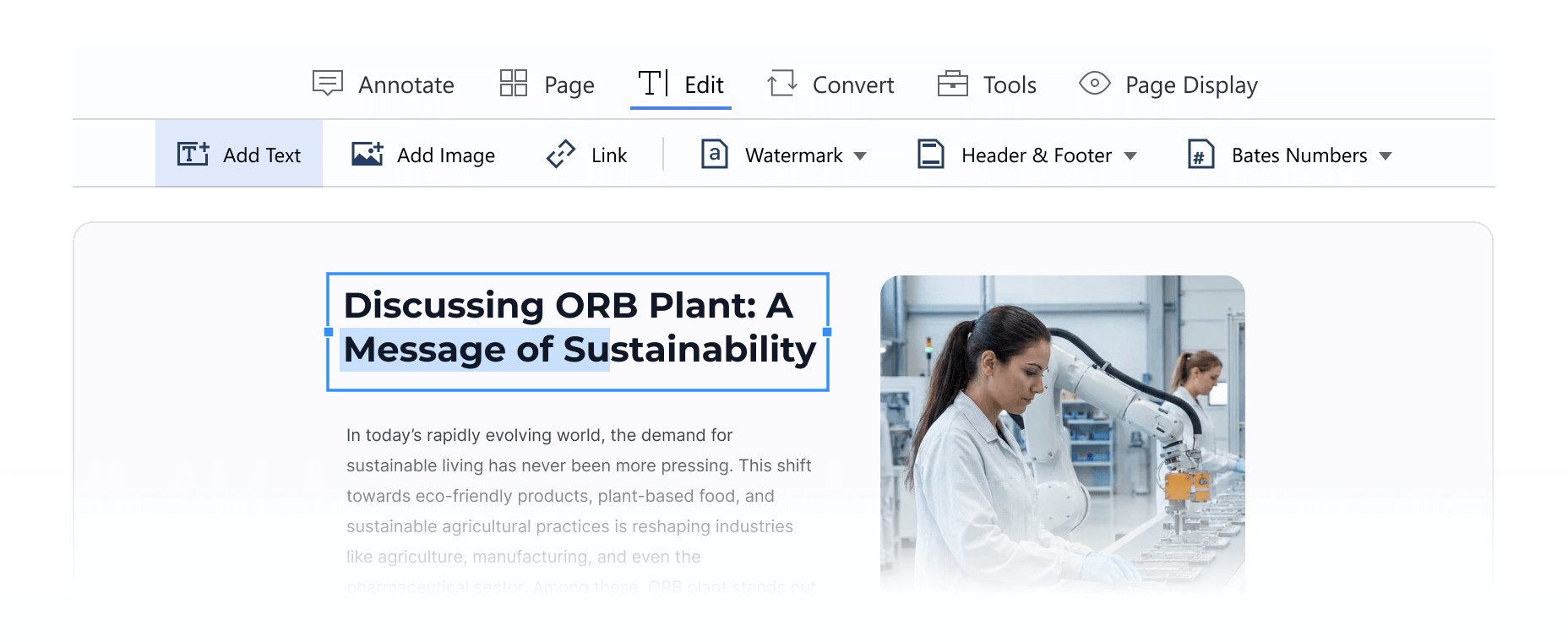
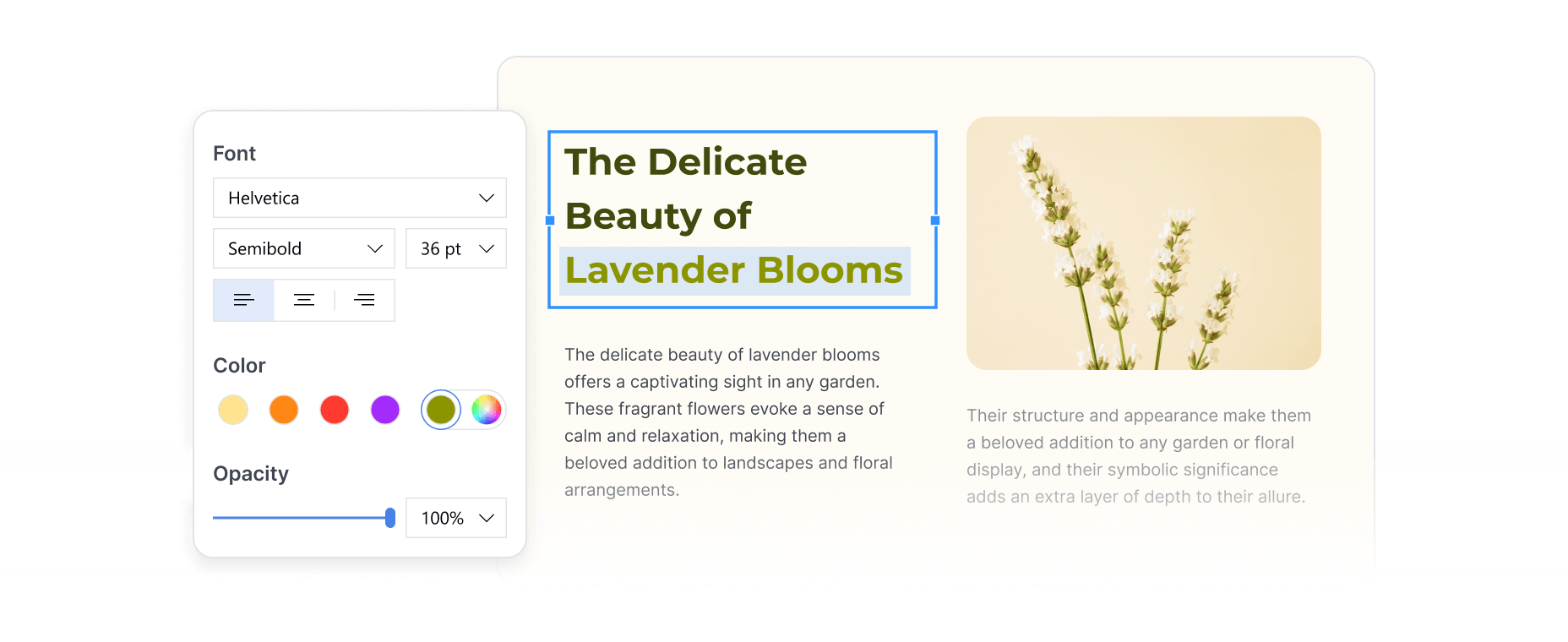
Need to make a main heading larger and bolder? Want to highlight key information with color?
PDF Reader Pro allows you to easily adjust font style, size, and color, as well as apply bold or italic formatting. Editing a PDF isn’t just about fixing content, it’s also about making your document look more professional.
Click “Edit”, select the text, and the properties panel will appear on the right, allowing you to customize text styles freely.
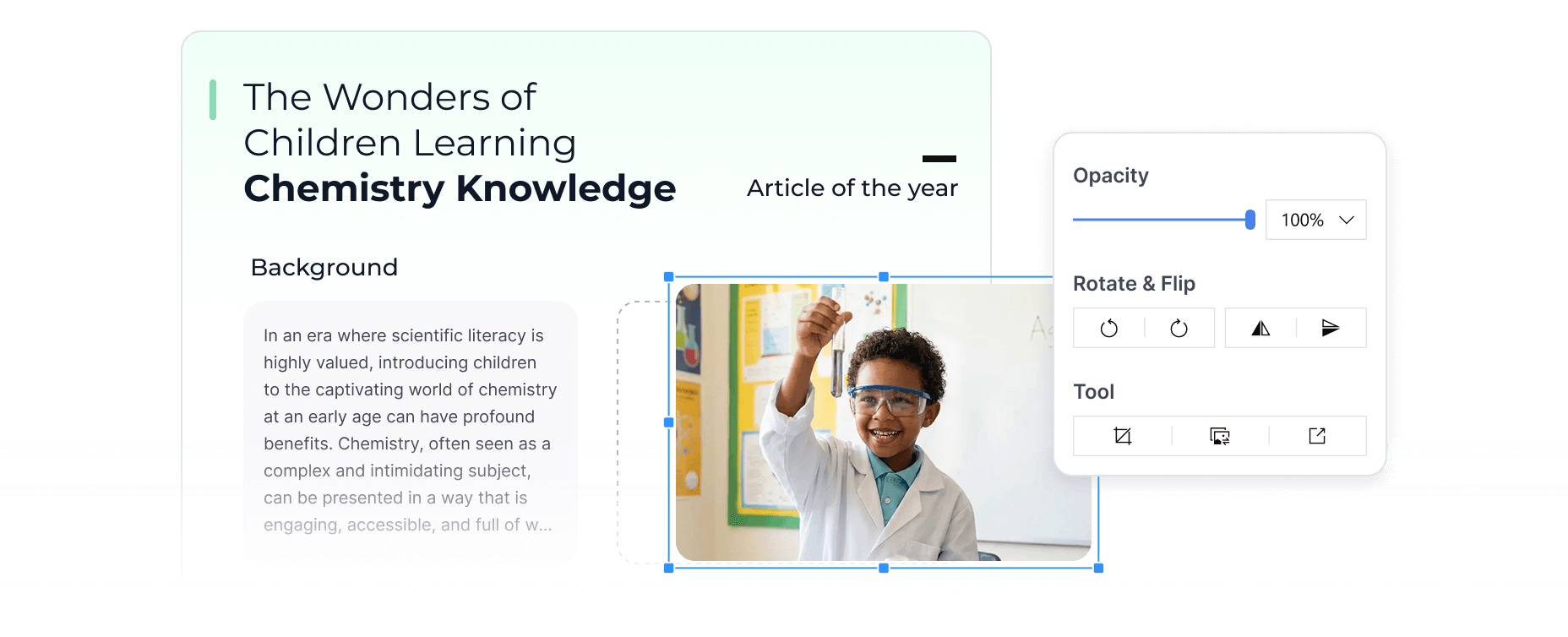
Editing a PDF isn’t just about text — images matter too. If a document contains outdated or incorrect visuals, image editing is essential.
Click “Edit”, select the image, and use the properties panel to replace, crop, rotate, or delete images directly inside the PDF.
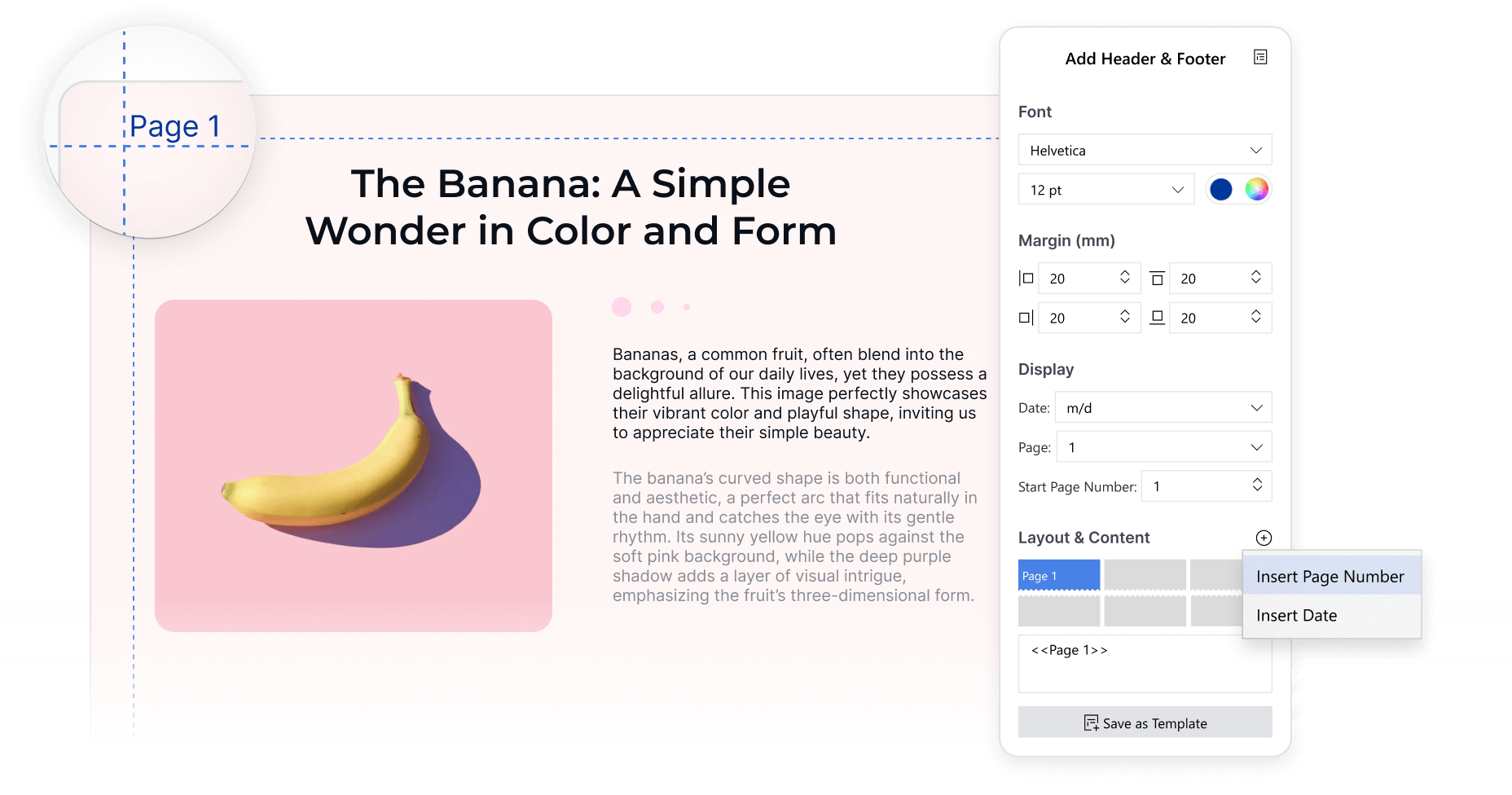
A professional PDF document is rarely complete without page numbers or branded headers and footers.
Find “Editor” on the toolbar, choose “Header & Footer”, and you can customize both the appearance and the content:
Once configured, headers and footers are applied instantly. You can even batch-apply them to multiple files to save time.
Master these 4 essential PDF editing skills, and PDFs will no longer be static, locked files, but fully editable, flexible documents.
👉 Try PDF Reader Pro today and experience these advanced editing features with a 7-day free trial.