
Tips Today
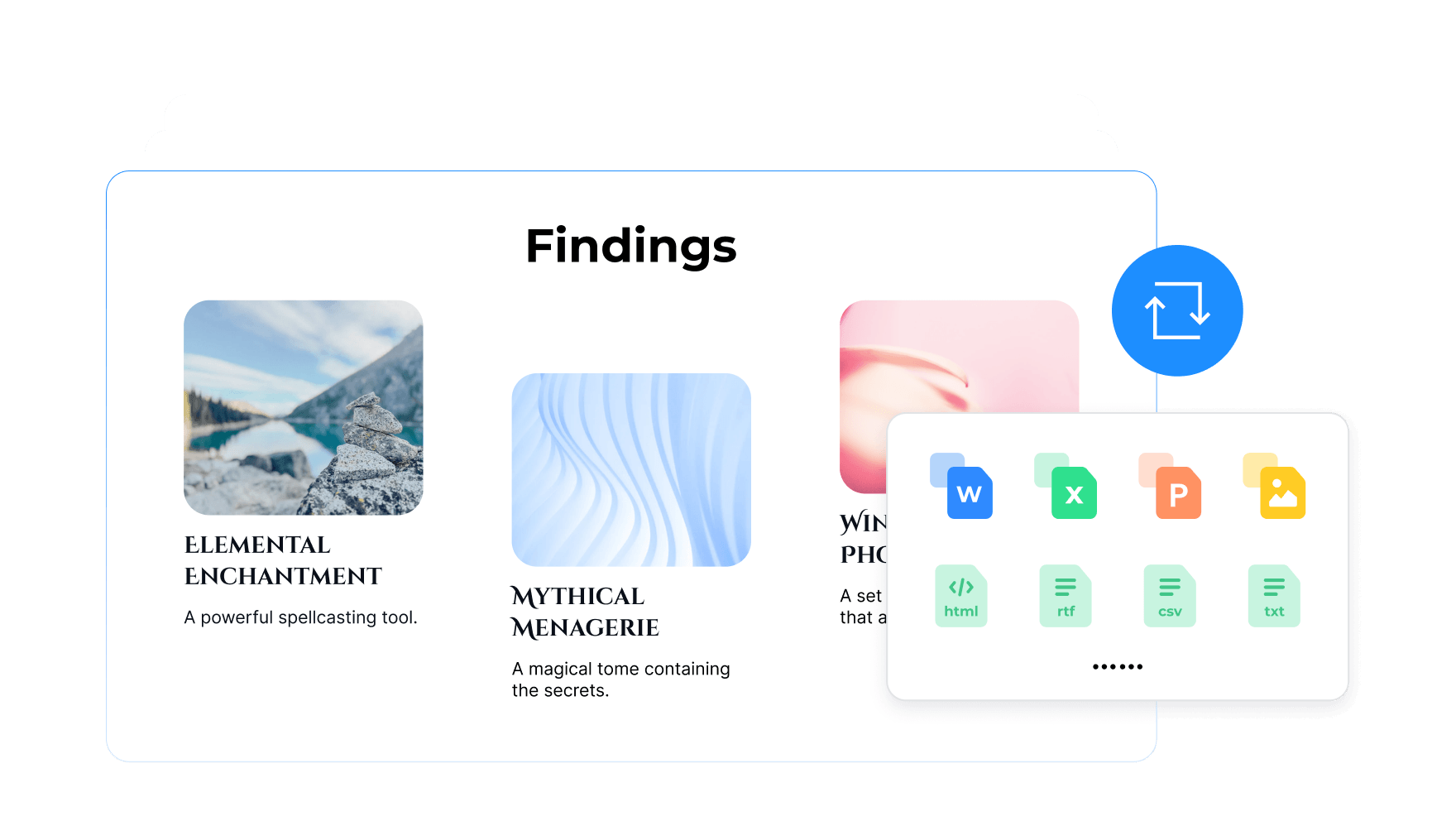
PDF Reader Pro allows you to convert PDFs into 10 different formats, including Word, Excel, PowerPoint, Text, HTML, CSV, and image formats, while preserving the original document layout as much as possible.
Among these powerful conversion tools, some useful tips can also help you quickly extract the data you need and boost your productivity.
Let's take a look and see if you've already discovered these essential features!
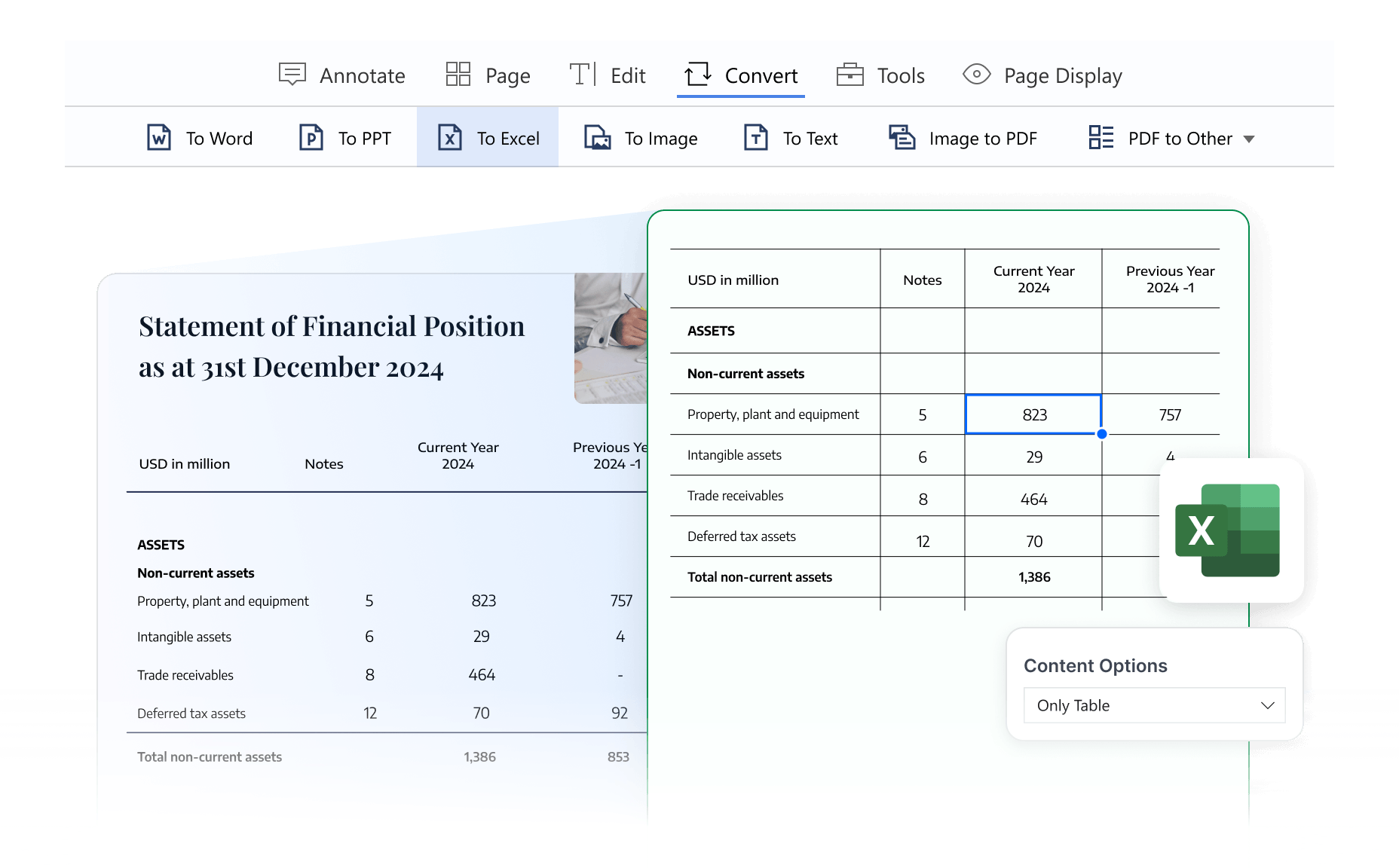
Often, the most valuable content in a PDF is the table, such as financial statements, market analysis data, or experimental data in academic research reports. PDF Reader Pro can accurately detect table structures and export them to Excel with one click, making calculations and analysis effortless.
Simply select "PDF to Excel" from the toolbar, and choose "Only Table" in Content Options to extract all tables into an Excel spreadsheet.
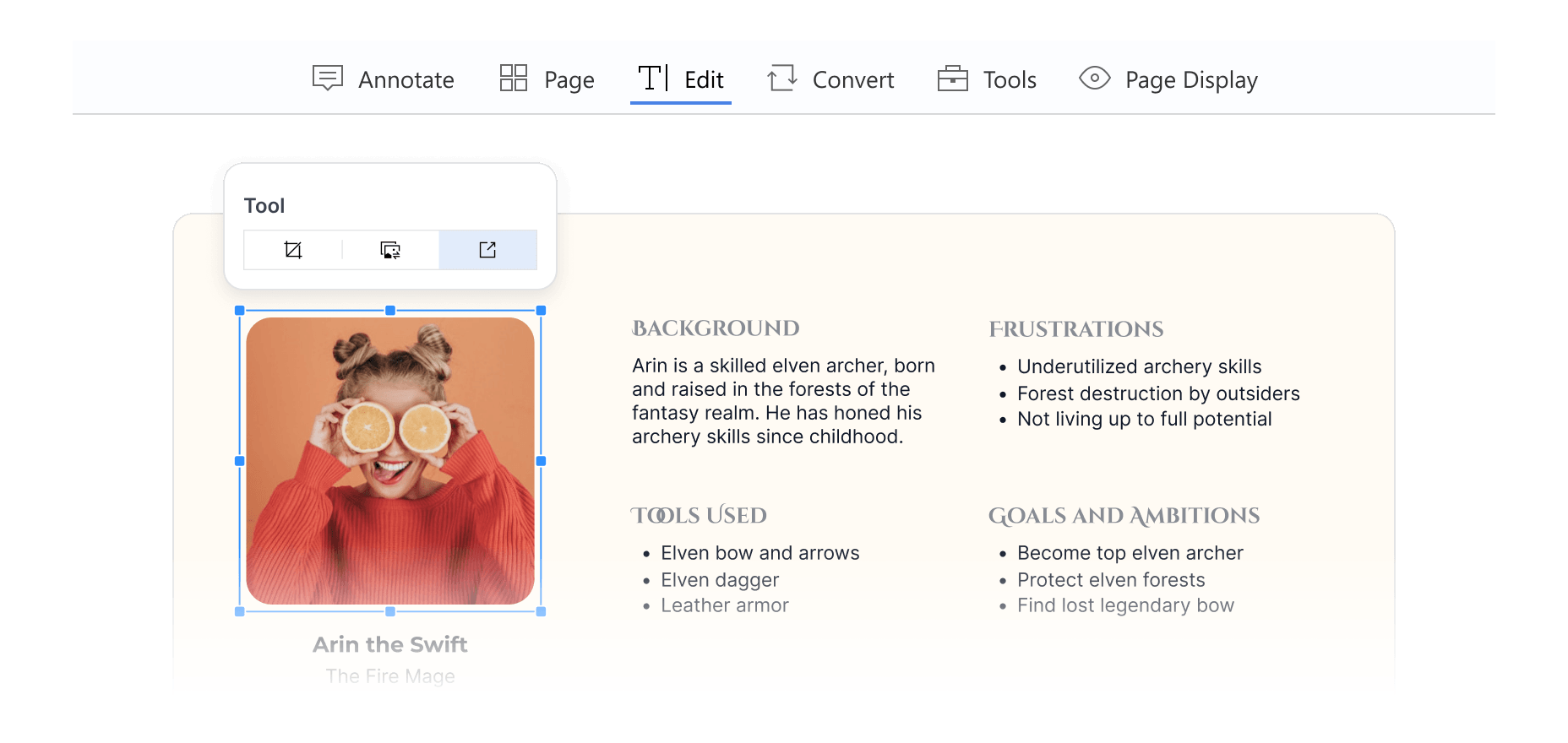
Still saving images from PDFs in an unprofessional way, taking screenshots? Which results in a low-quality image file. PDF Reader Pro lets you export images from a PDF with just one click, preserving the original image quality. This makes it easy to quickly collect and archive images directly from your PDF files.
Simply click "Edit PDF" in the toolbar, select the image you need, and choose Export to save the original image.
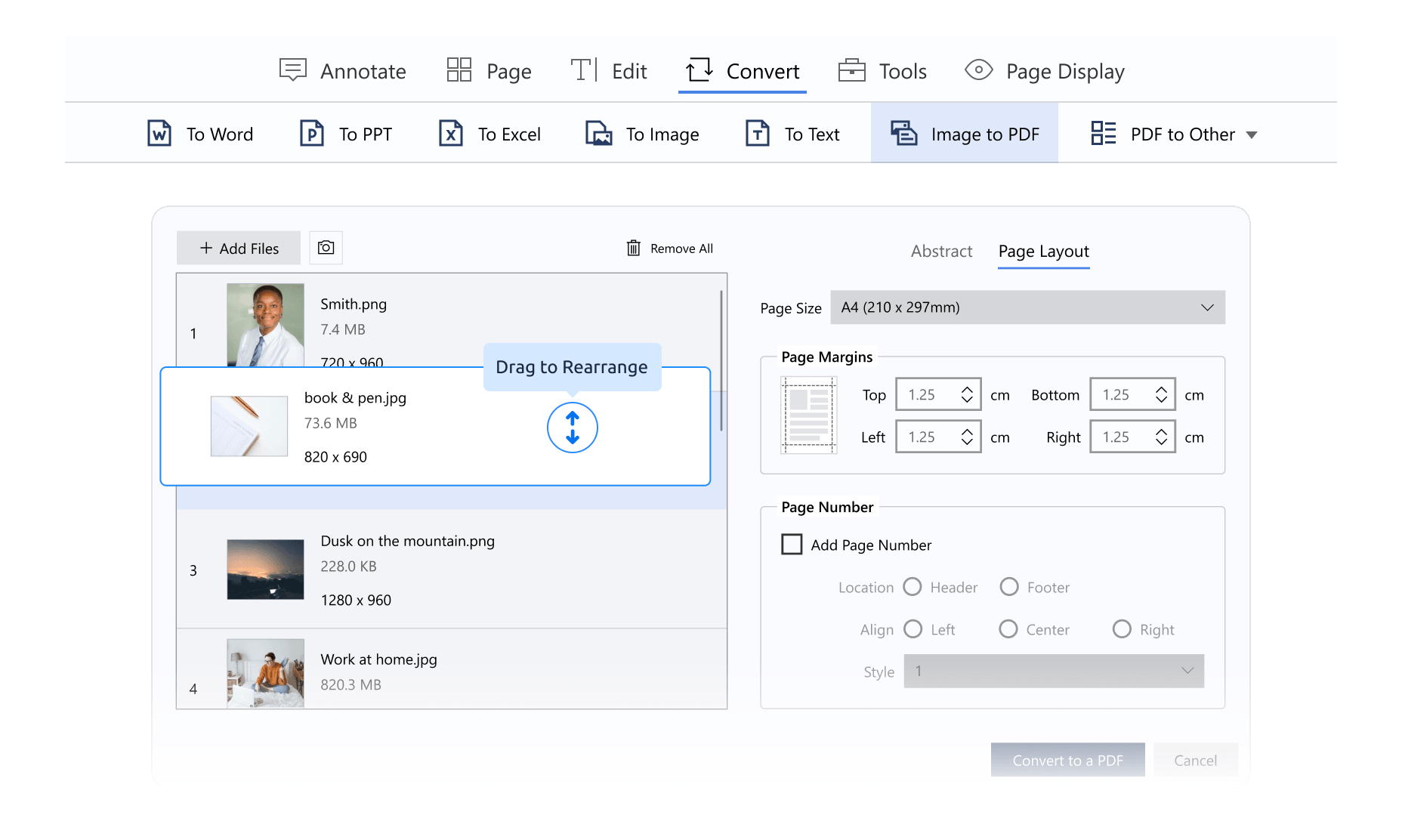
Have too many images scattered across different files, making them hard to read and present? With PDF Reader Pro's Image to PDF feature, you can easily combine multiple images into a single PDF file. Whether they're scanned contracts, IDs, invoices, or product photos, everything can be organized into one PDF for easy reading and presentation.
Click Convert on the Toolbar, then choose "Image to PDF". You can choose multiple images at once and drag to rearrange their order. You can also tap the camera icon to capture new images instantly and add them directly to your PDF.
When you're dealing with multiple documents that need to be converted, batch processing is undoubtedly the best choice. PDF Reader Pro offers a wide range of powerful batch tools, allowing you to convert multiple PDF files at once with ease.
Simply click "Convert" in the toolbar, select your desired output format, and in the pop-up window, choose Batch in the lower-left corner to start batch conversion instantly.
Start converting now – enjoy a 7-day free trial with full access to all features!