
Tips Today
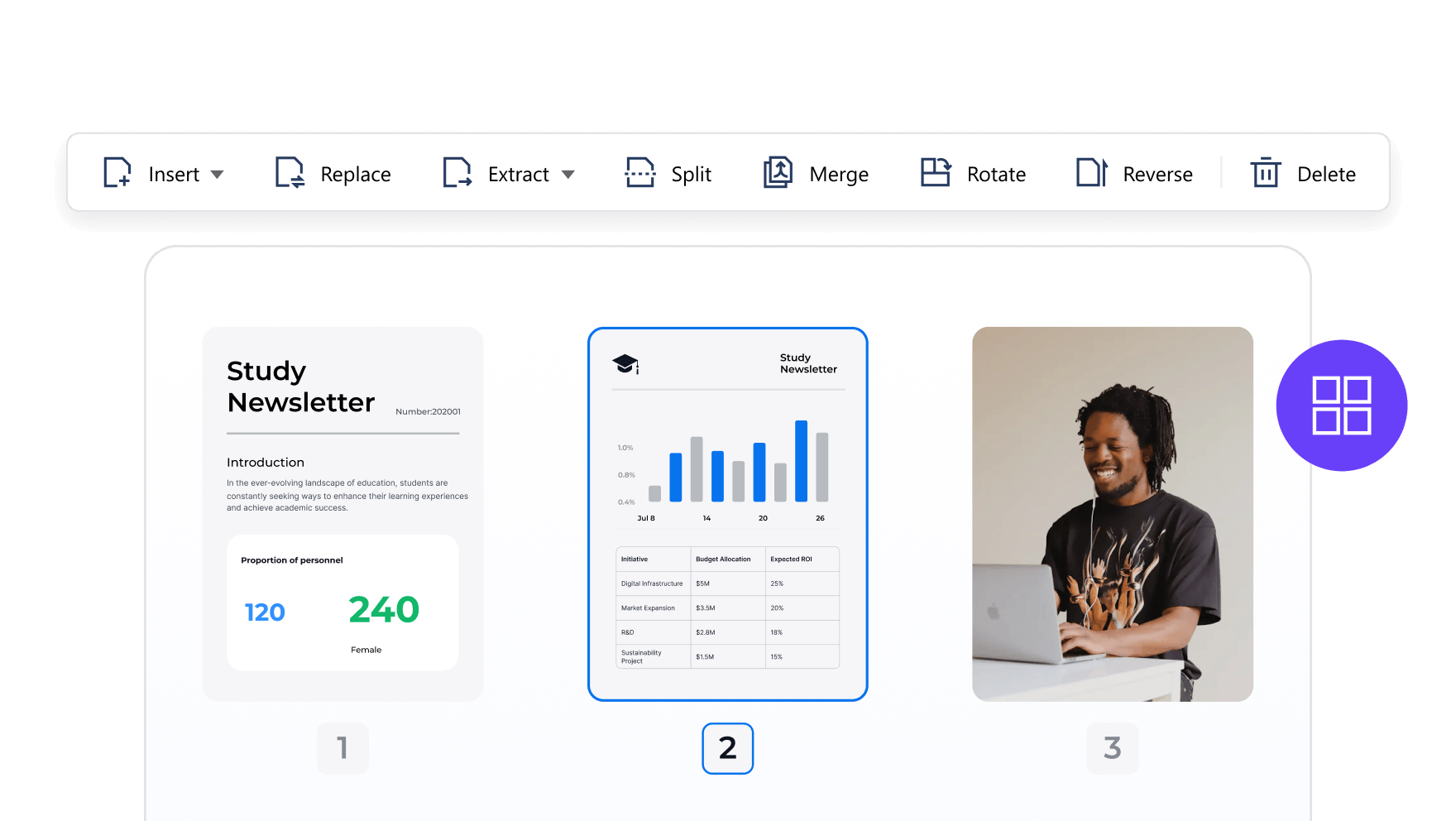
Whether you're reorganizing reports, sharing selected content, or restructuring long documents, knowing how to work with PDF pages efficiently makes a real difference.
Here are 4 practical page-editing tips that help you stay in control of your PDFs.
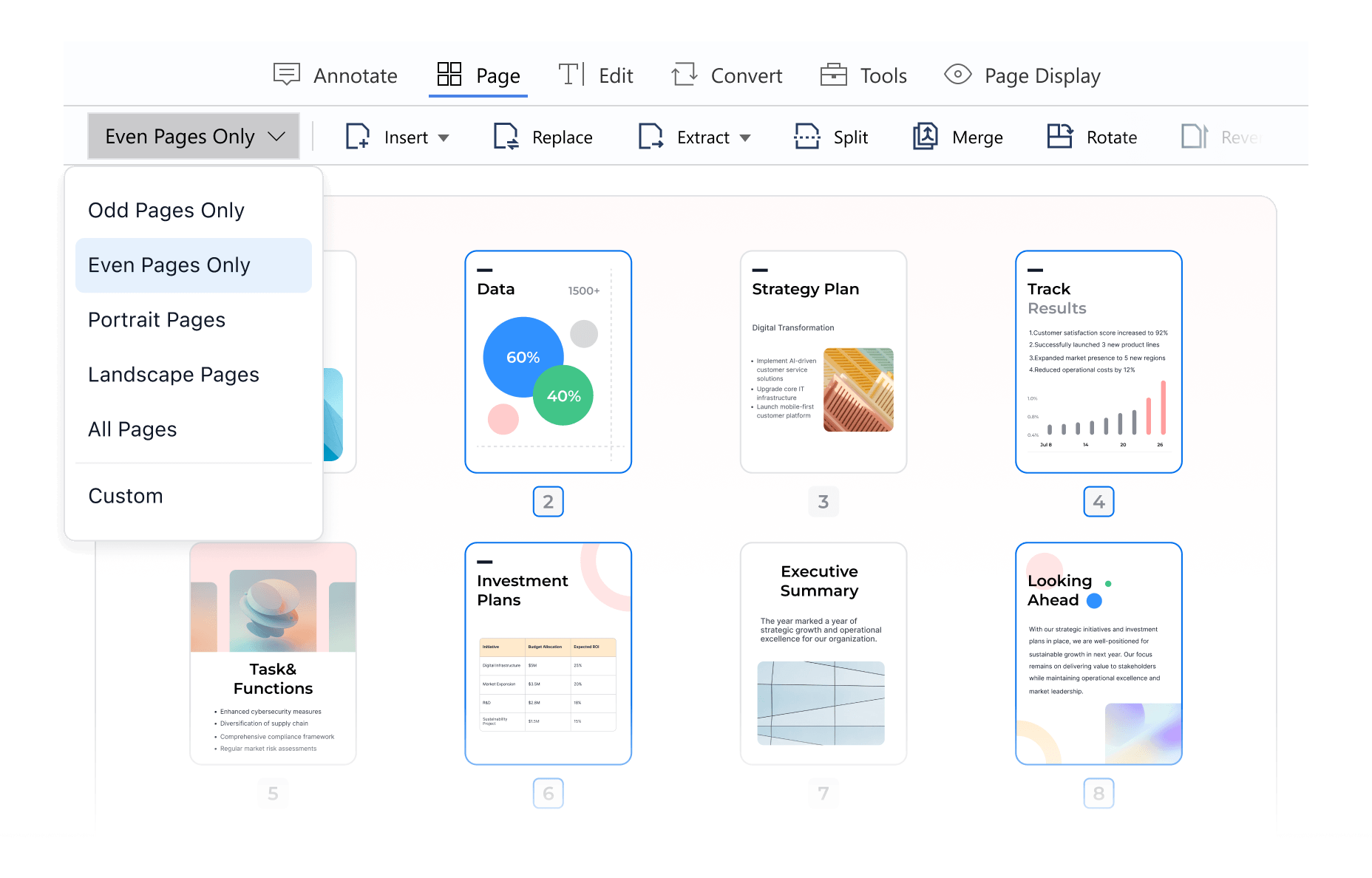
Large PDFs don't mean you have to work page by page. With Page tool, PDF Reader Pro lets you quickly select specific pages using ranges, continuous selections, or odd and even pages. Once selected, you can apply actions like extract, split, or insert without repeating the same steps.
This small habit alone can save minutes on every document.
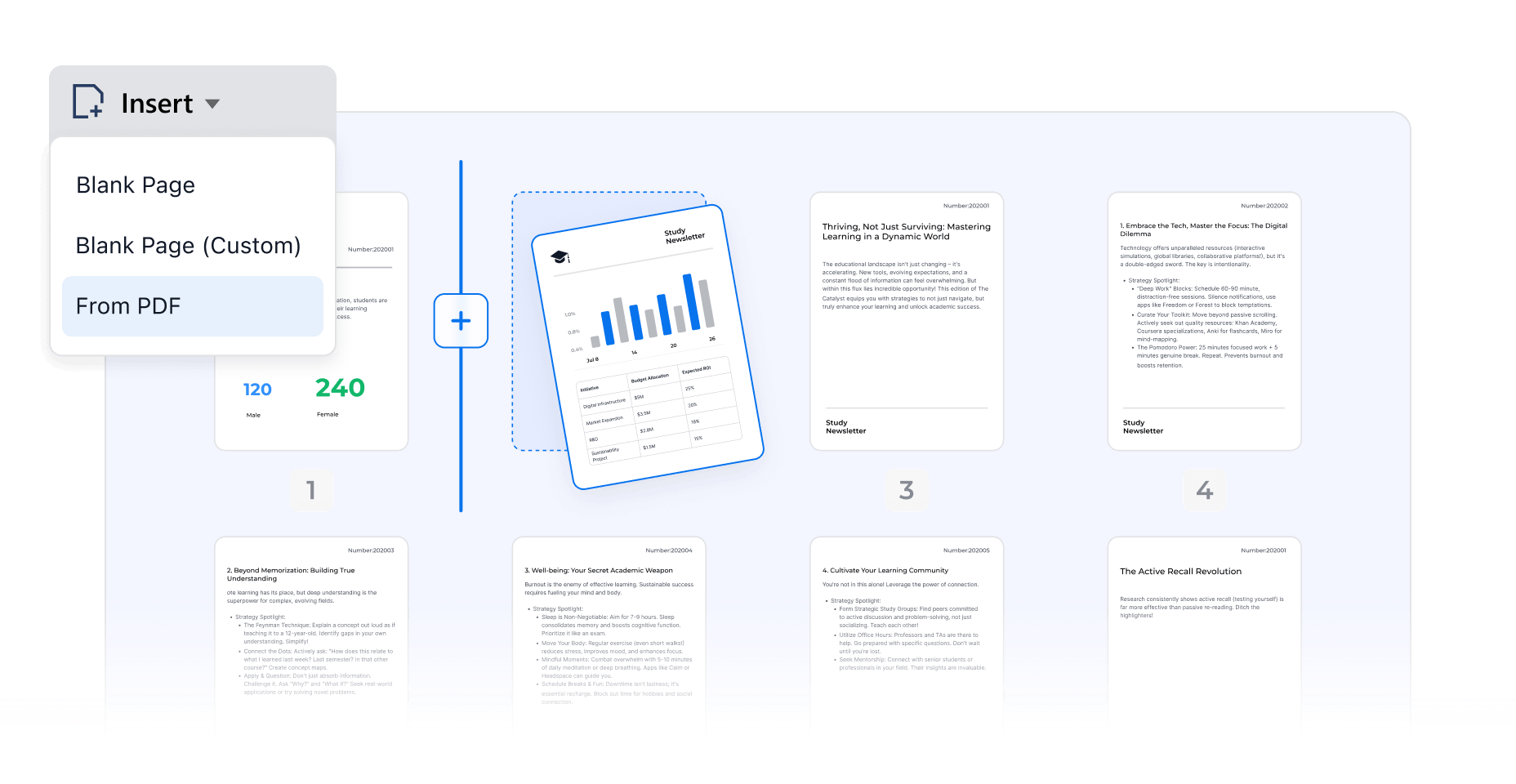
Sometimes a PDF needs just one more page — or several. With PDF Reader Pro, you can insert pages from other PDF files or add blank pages directly into your document. Pages can be placed at the beginning, end, or any position in between, so your structure stays exactly the way you want it.
No separate merge process required.
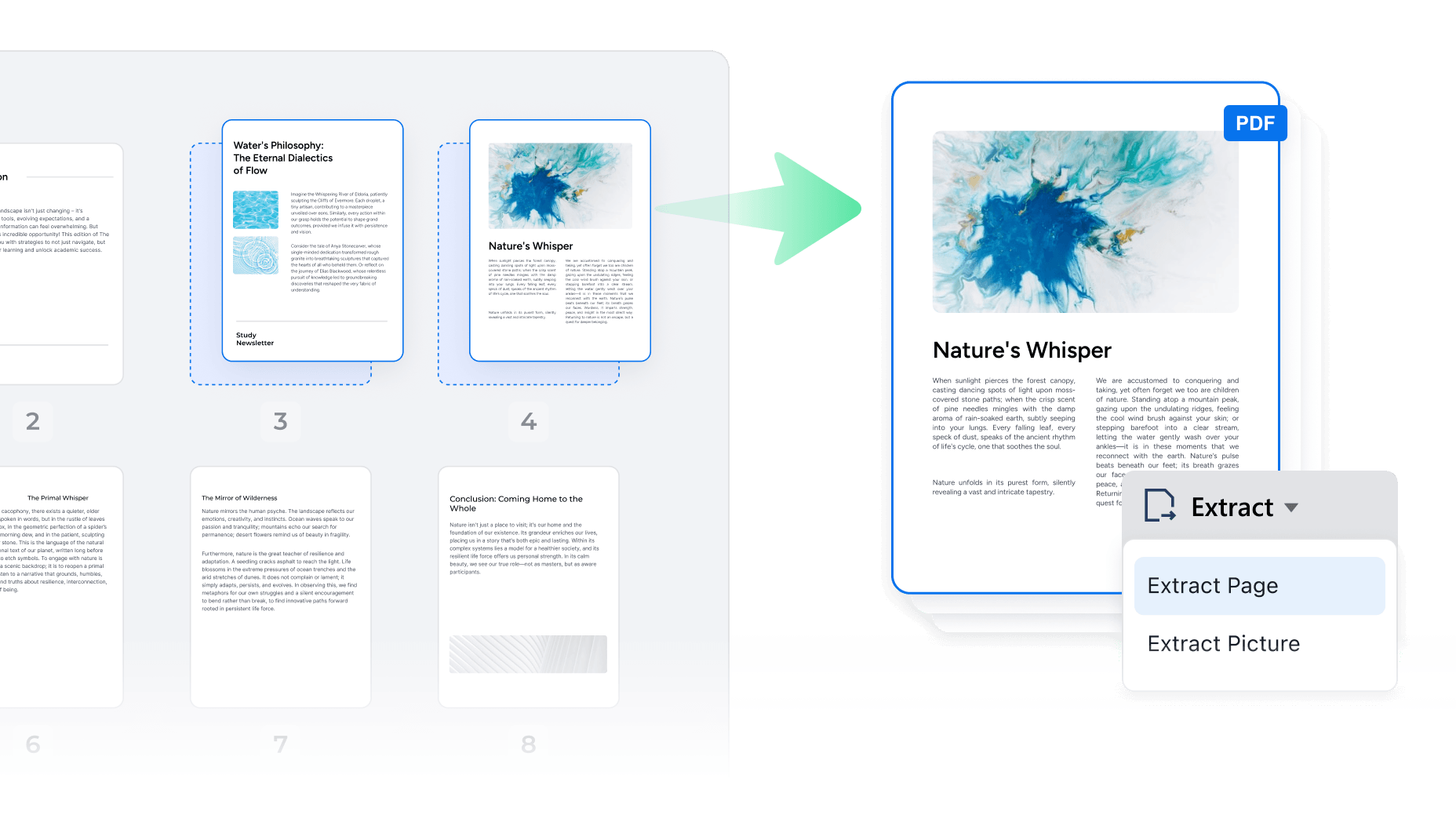
Not every PDF needs to be shared in full. When you only need certain pages, PDF Reader Pro allows you to extract them and save them as a new PDF file. This is ideal for creating summaries, sharing specific sections, or organizing content by topic.
The result is a clean, independent file — ready to use.
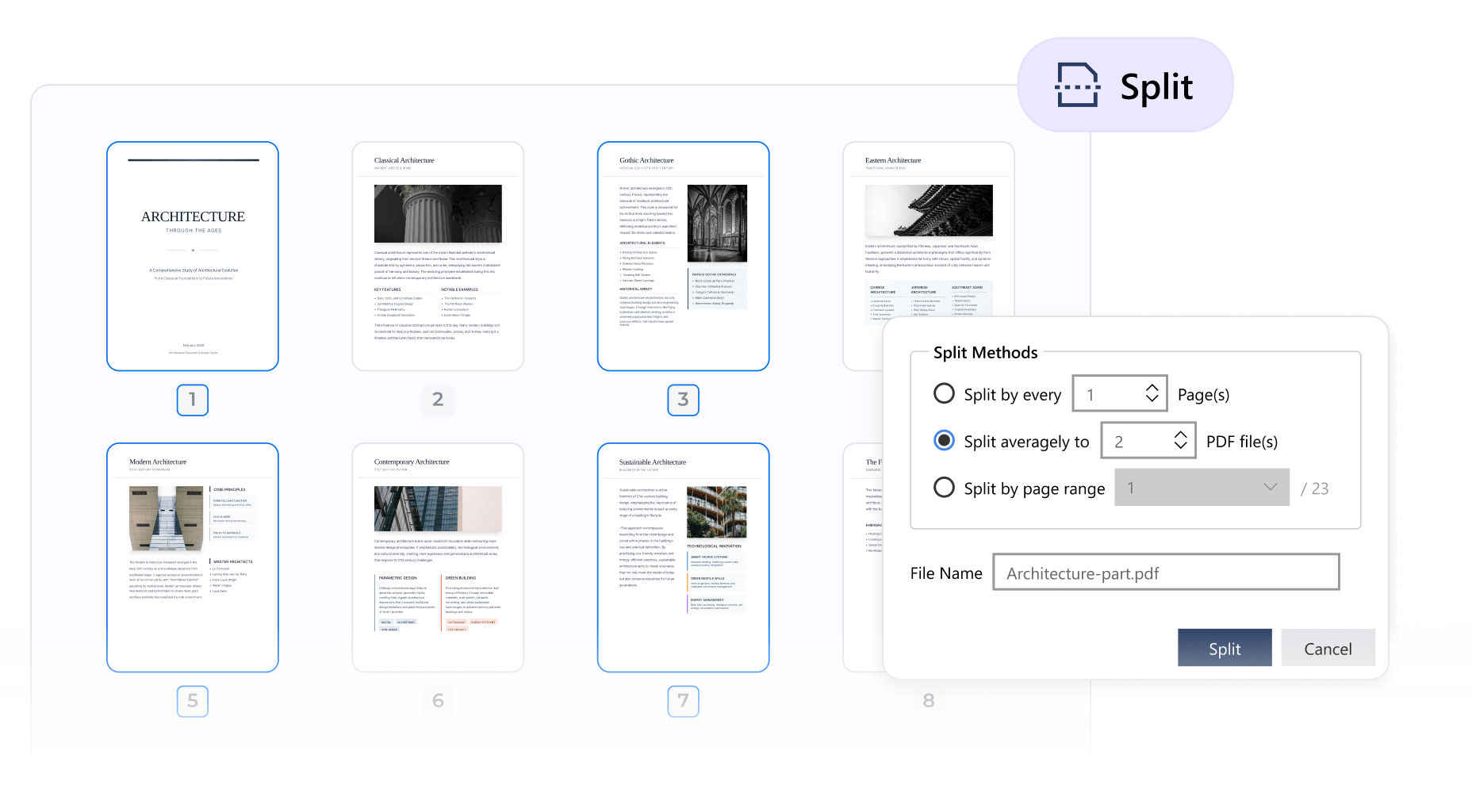
Long PDFs are hard to navigate and even harder to share. With PDF Reader Pro, you can split a PDF into multiple files based on page ranges or intervals. This makes it easy to separate it sections, chapters, or individual sections without manually copying content.
A few clicks is all it takes to turn one file into many.
Once you're comfortable with these page-level actions, PDFs stop feeling rigid and start working around you.
👉 Subscribe Now and explore smarter page editing with a 7-day free trial.