Scanned documents are a common part of daily work, whether you're dealing with contracts, textbooks, or handwritten notes. However, when it comes to editing scanned documents, things get tricky—you may find the text is totally unselectable and can’t be edited.
So, how to edit a scanned document? In this article, we’ll show you the easiest ways and the best tools to do that. What’s more, bonus tips are waiting!
How to Edit a Scanned Document: Two Essential Steps
Since scanned files are image-based, they aren’t directly editable like regular PDFs. To transform them into editable text, you need to convert them first.
In other words, editing a scanned document involves two crucial steps: OCR conversion and editing.
-
OCR (Optical Character Recognition): OCR technology scans the document, extracts the text, and turns it into a digital, editable format. Without this step, a scanned document will just be an image with no selectable text.
-
Editing: Once the OCR process is done, you can freely make changes—whether that means correcting text, updating information, or formatting the content—with nowadays powerful PDF editors.
The question is: What tools can you use to perform these two steps? While you might be searching for a free online solution, you may also consider using a more professional PDF tool. Which one is more effective? Let’s dive deeper into the details.
Are There Free Scanned PDF Editors Online?
While many online tools promise to help with OCR, most of them fall short of expectations when it comes to editing scanned PDFs. Here's what we found after testing popular free OCR tools like iLovePDF, SmallPDF, Xodo, PDF24, PDF2Go, and more:
-
Two-step process: Typically, these tools require you to first upload your scanned document to an OCR tool, download the converted file, and then open it in another editing tool.
-
Limited functionality: Many of these online OCR tools only offer partial text recognition, allowing you to select text but not actually edit it. This is not ideal for full document editing.
-
Paid features: Editing features often come with a price tag, as many free tools lock essential editing capabilities behind premium plans.
In short, most free online tools don't provide a seamless, all-in-one solution to convert and edit scanned PDFs. You’ll often have to jump between different tools or platforms, which can be time-consuming and inefficient.
The Better Option: Use a Professional PDF Tool with Scanned Document Editing
A more efficient solution is to use a professional PDF editor with integrated OCR and scanned document editing features. PDF Reader Pro provides exactly that, allowing you to convert and edit scanned PDFs in a streamlined workflow.
Here’s how it works:
Step 1: Open your scanned PDF in PDF Reader Pro.
Step 2: Once the file is opened, PDF Reader Pro will detect that it is a scanned document. Simply choose Convert to Editable PDF.
Step 3: Choose the document language (PDF Reader Pro supports 116 languages) and apply OCR to convert the scanned file into an editable PDF while preserving the original layout.
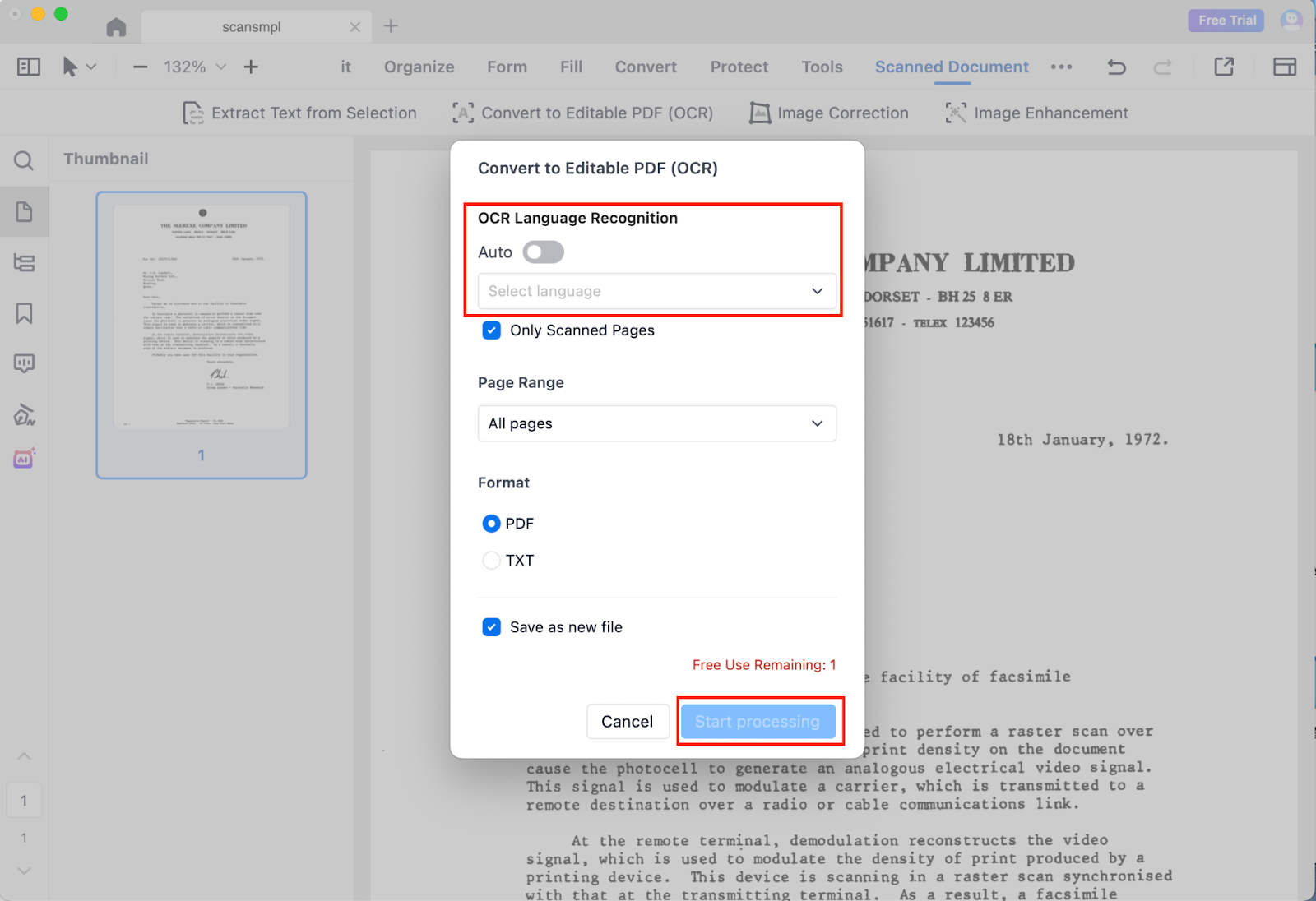
Step 4: After the conversion is complete, your scanned PDF becomes fully editable. You can now modify text, adjust formatting, add annotations, or continue editing using the Edit PDF tools.
What Makes PDF Reader Pro Even Better:
Beyond converting scanned PDFs into editable documents, PDF Reader Pro also provides additional tools to make working with scanned files easier:
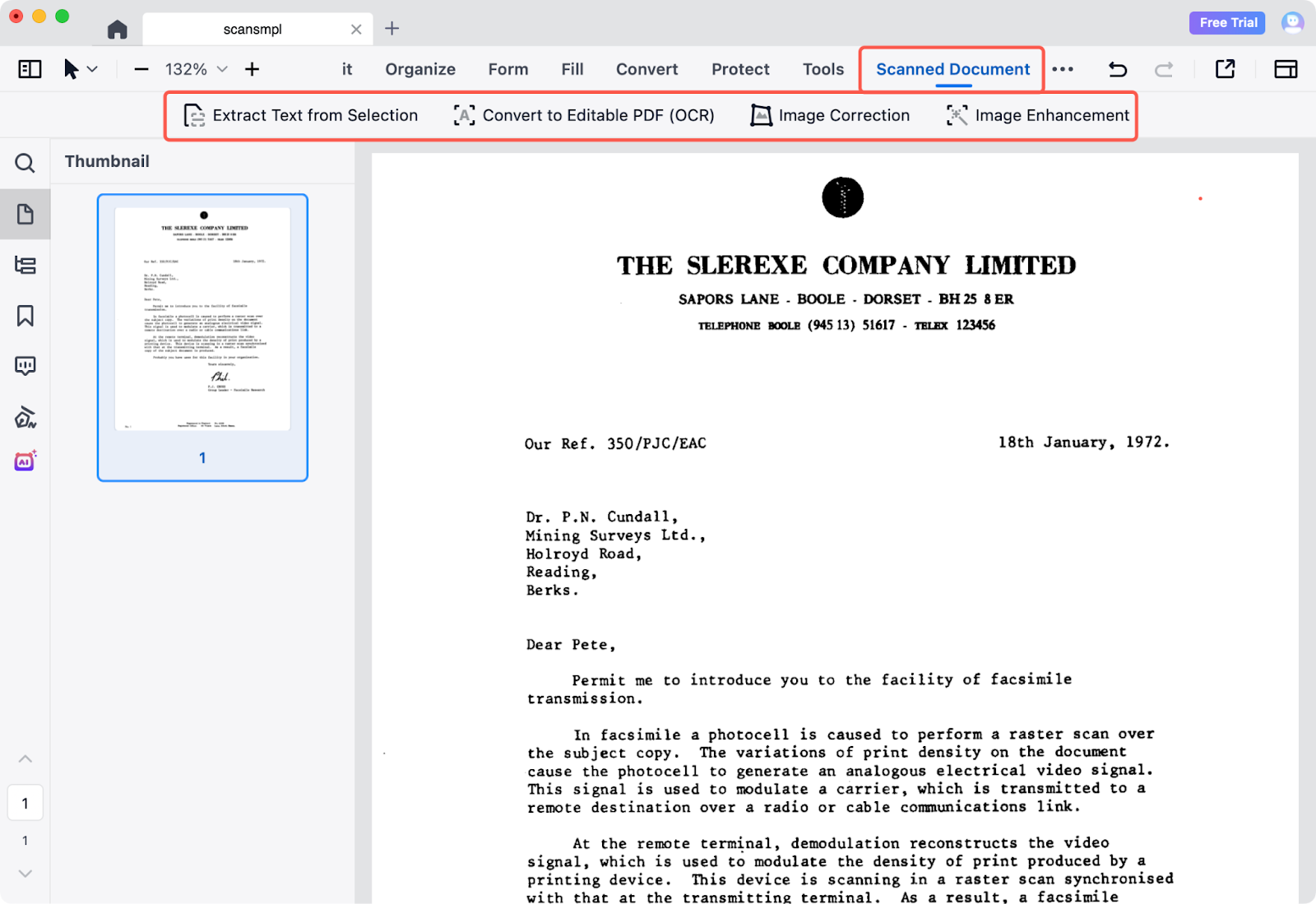
- Extract Text from Selection – Quickly capture text from a specific area of a scanned PDF without converting the entire document.
- Image Enhancement – Improve clarity, contrast, and overall readability of low-quality scans for better viewing and sharing.
- Image Correction – Automatically fix skewed pages or uneven scans, making documents cleaner and more professional.
Together, these tools help you extract, enhance, and edit scanned documents more efficiently in one place. Looking for a deeper overview of the feature? Check out our guide.
Start your 7-day free trial today and explore all features at no cost now!
Bonus Tip: Redacting Sensitive Information Instead of Editing the Whole Document
In some cases, you may only need to redact sensitive information (such as ID numbers, signatures, or confidential data) in a specific area, rather than fully editing the entire scanned PDF. In such situations, PDF Reader Pro offers a Redaction tool that allows you to permanently cover up specific sections of the document.
Here’s how to use the Redaction tool:
Step 1: Open the document in PDF Reader Pro.
Step 2: Click Protect in the toolbar and then select Redact.
Step 3: Drag to cover the areas you want to redact.
Step 4: Once done, click Apply to permanently remove the information from the document.
The Redaction tool ensures your sensitive data is completely and securely removed from the document, making it ideal for compliance or privacy purposes.
Conclusion: Choose the Best Tool for Editing Scanned Documents
To edit scanned documents effectively, you need to first convert them using OCR and then make the necessary edits. While free online tools may seem tempting, they often lack the functionality and convenience required to fully edit scanned documents.
For a smoother, all-in-one solution, PDF Reader Pro is the clear winner. It provides accurate OCR conversion and powerful editing features, all in one application. Whether you need to edit text, format your document, or redact sensitive information, PDF Reader Pro simplifies the entire process.
Now, start your 7-day free trial of PDF Reader Pro today and discover how easy it is to edit scanned documents in one go!
 Free Download
  Free Download