

PDF Reader Pro’s eSign feature provides a complete, digital workflow for requesting and managing electronic signatures. It is designed to be a fast and efficient way to handle documents that require signatures from multiple people, allowing you to move from uploading a file to tracking its completion in one streamlined process.
Step-by-Step Guide:
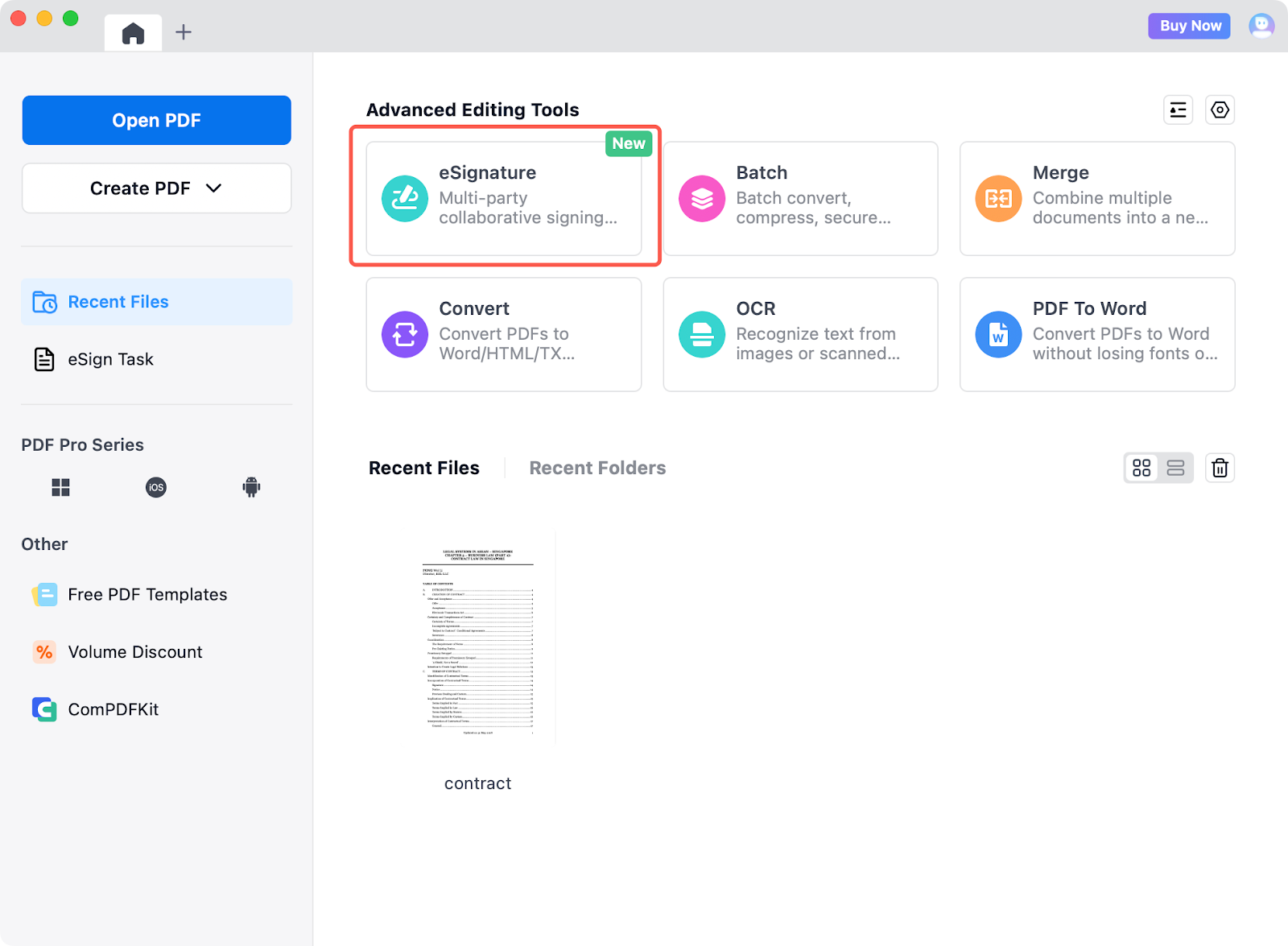
1. Access eSign: Open PDF Reader Pro and click the eSignature entry on the homepage.
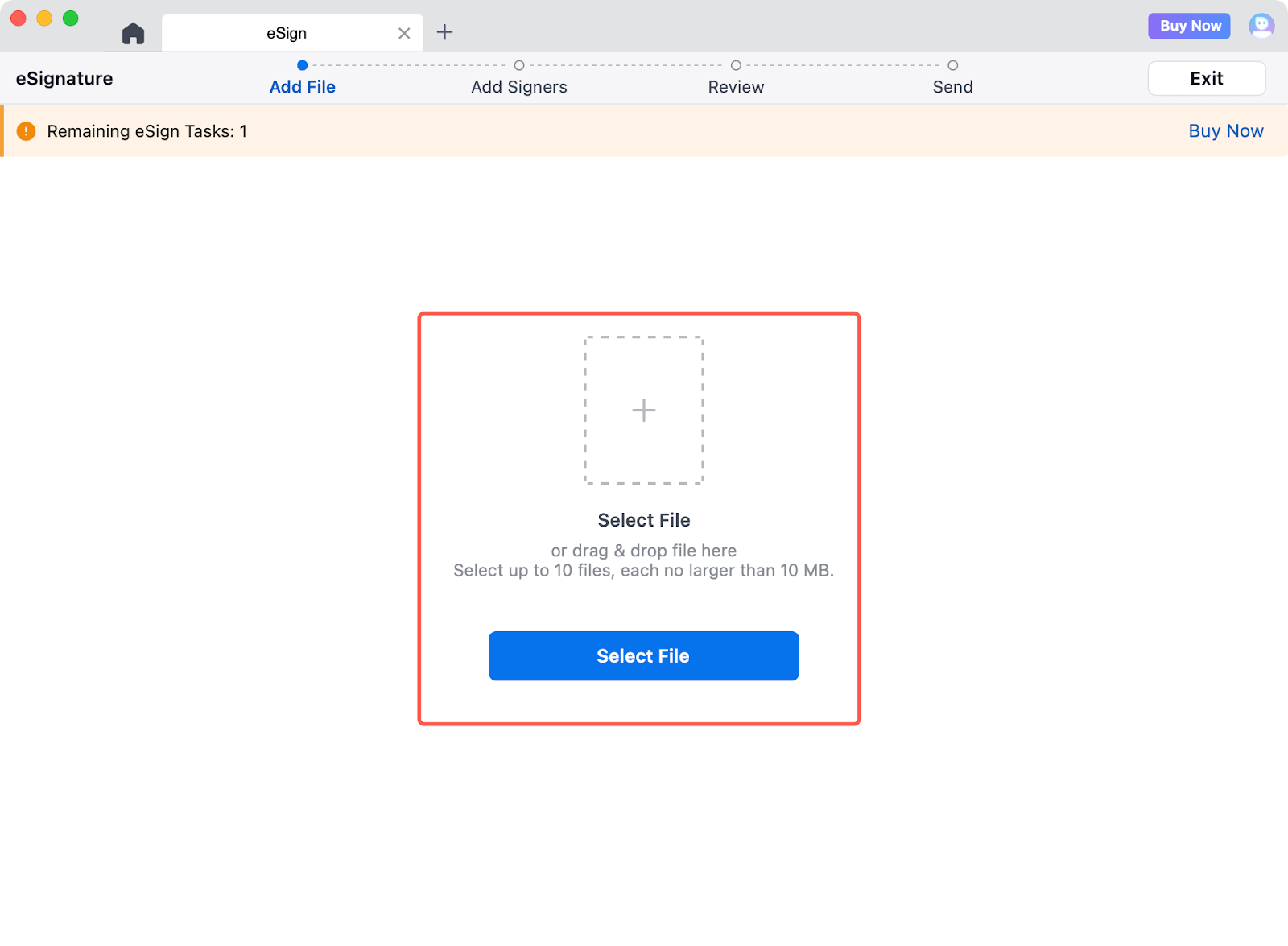
2. Add Files: Click Select File to upload the documents you need signed. You can upload a maximum of 10 files at once, with a size limit of 10MB per file.
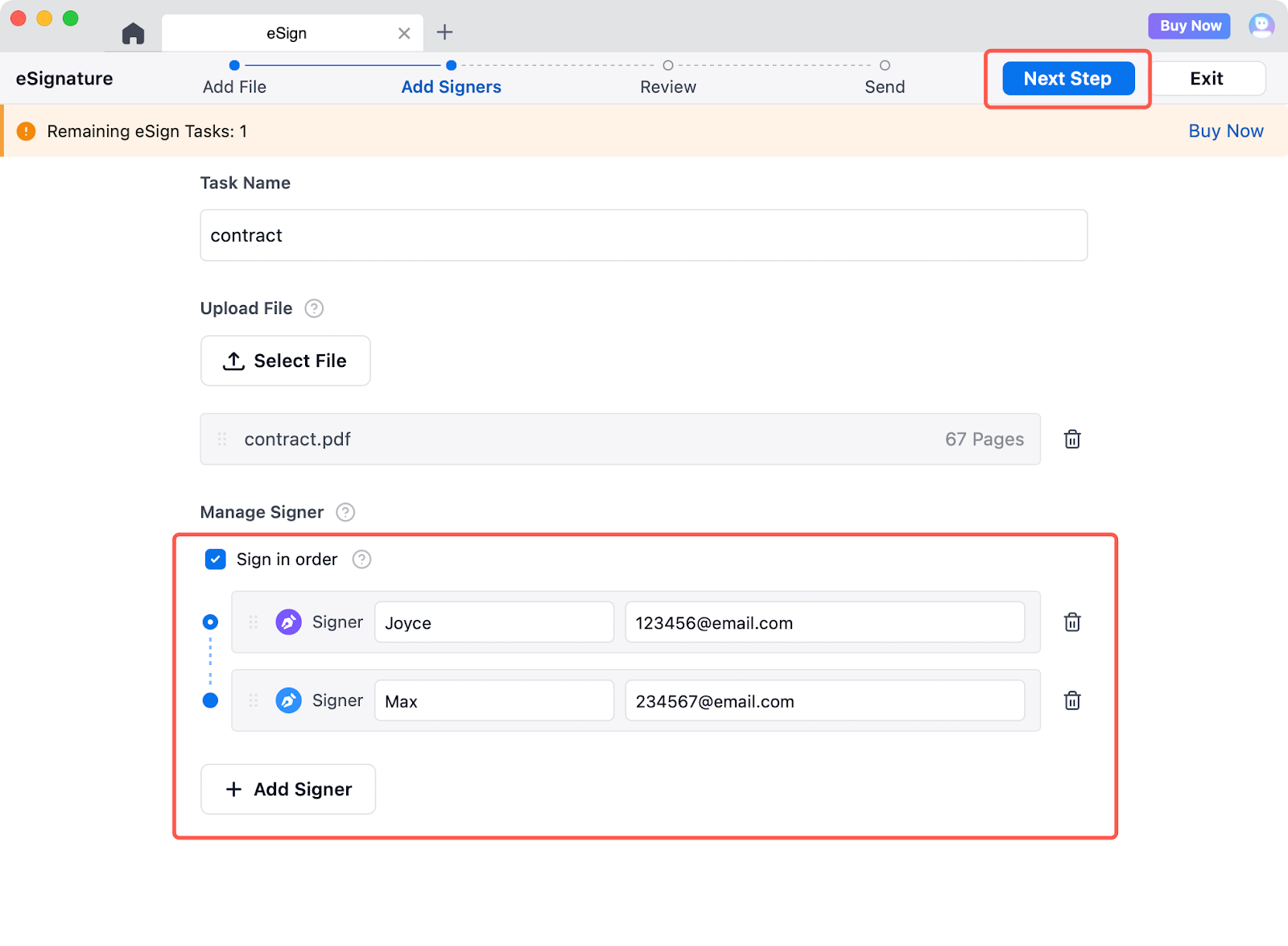
3. Add Signers: Enter a name for your task and add the names and email addresses of your recipients (up to 10 signers). To ensure people sign in a specific sequence, check the Sign in Order box. Click Next Step to proceed.
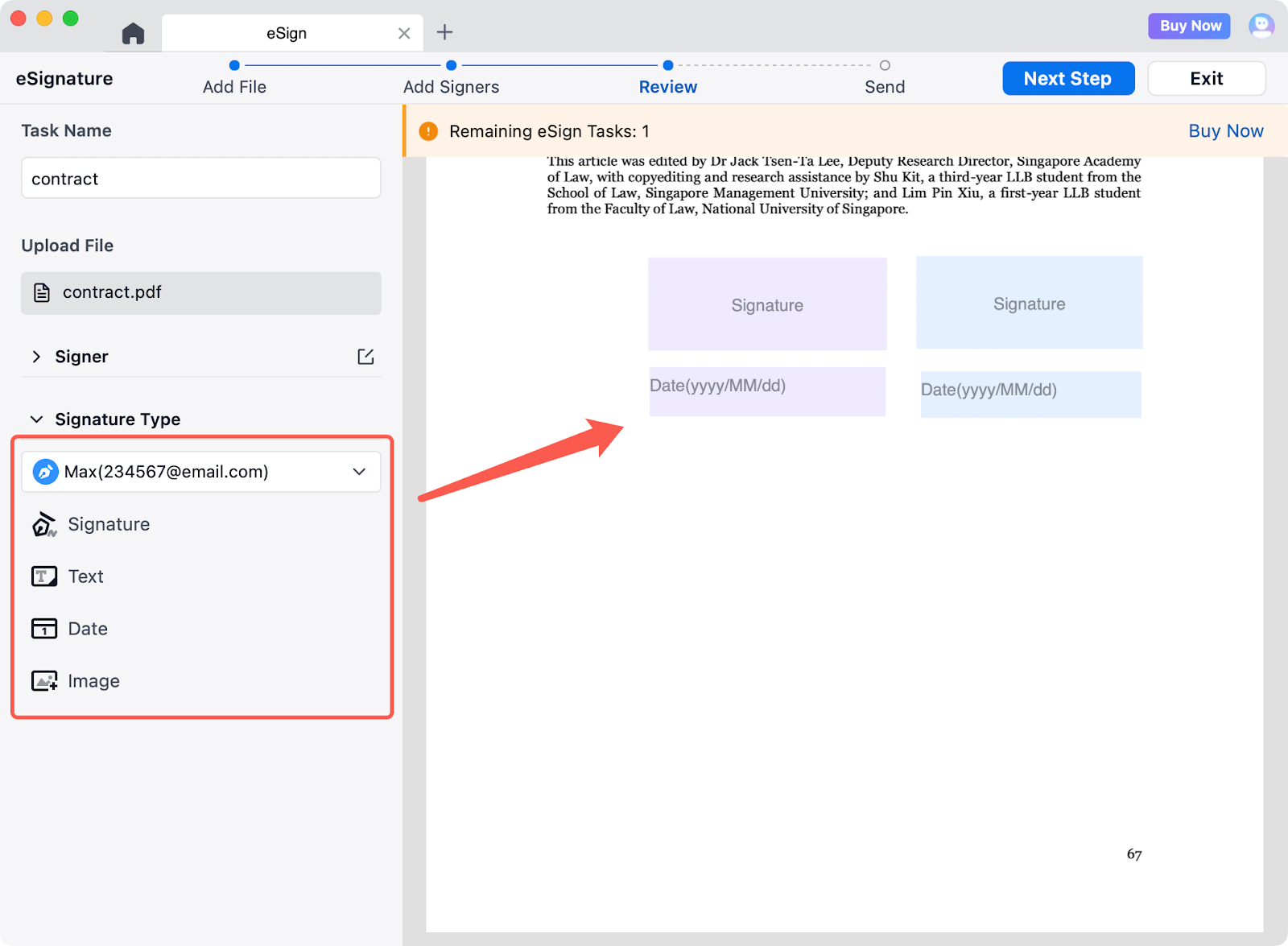
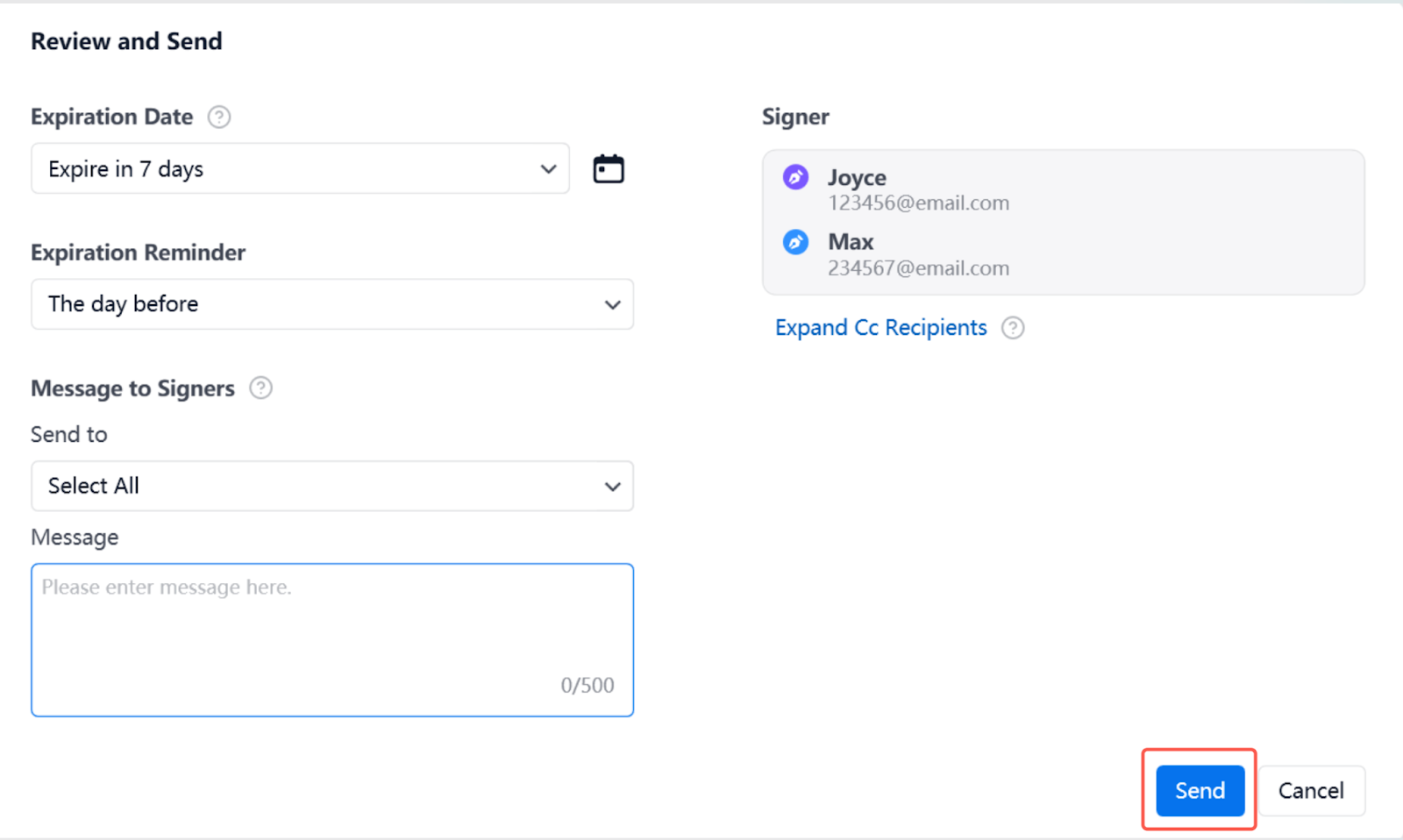
4. Review and Place Fields: Select Signature, Text, Date, or Image from the left panel and click on the document to place these fields. Make sure to assign specific fields to each individual signer. Click Next Step, and in the pop-up window, you can set expiration dates and reminders. Click OK to send the request.
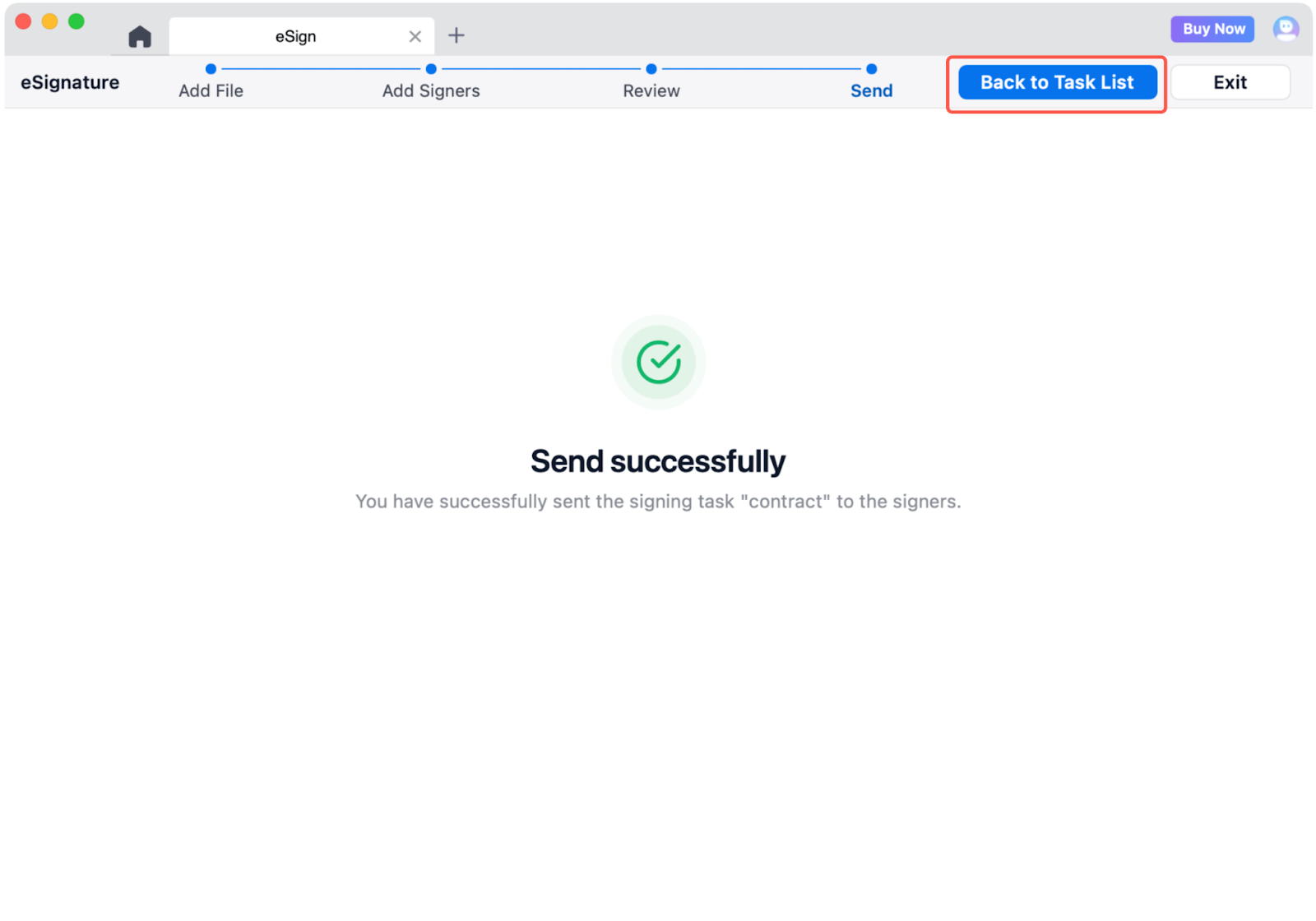
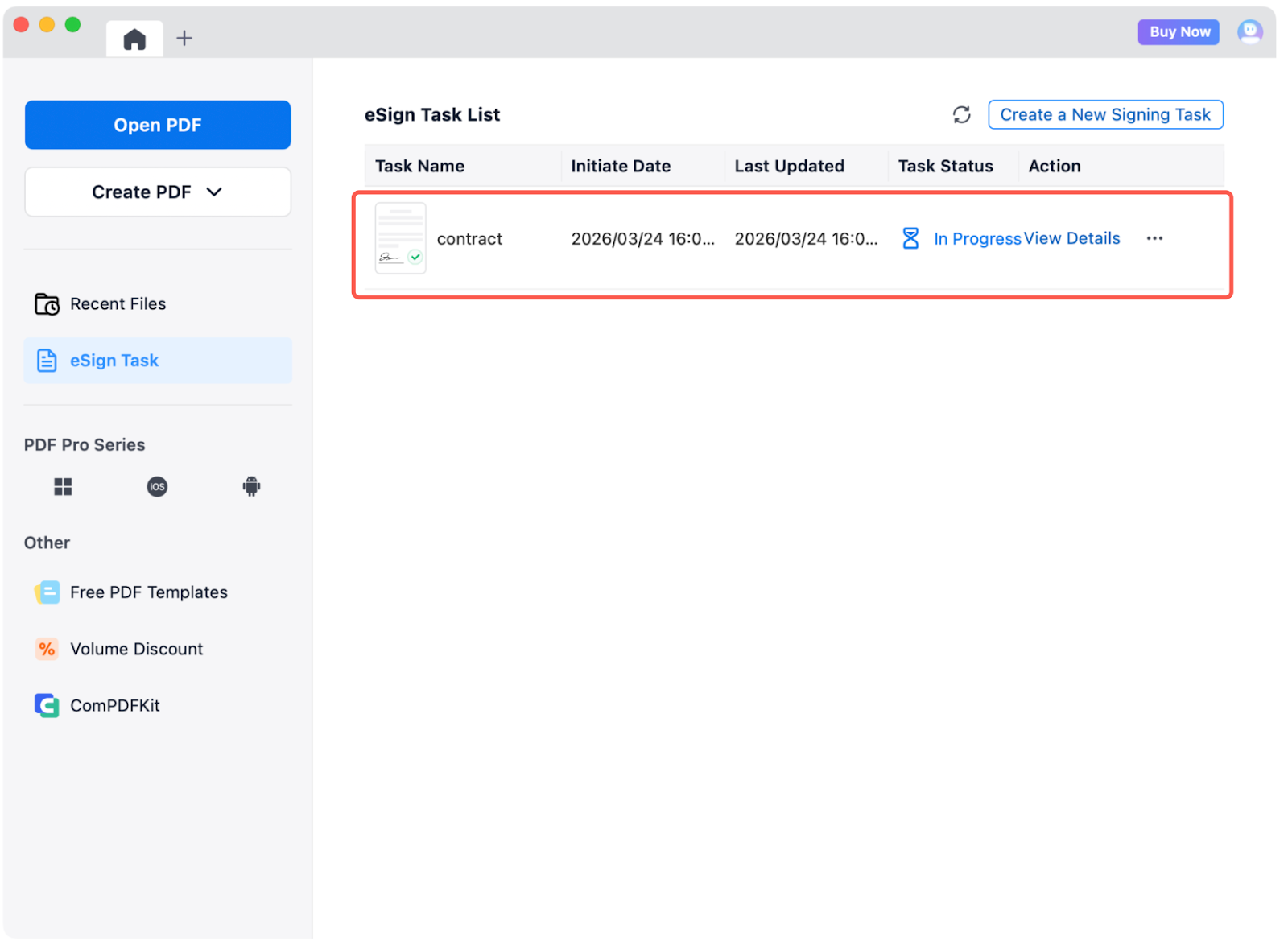
5. Track Progress: Once you see the "Sent Successfully" message, click Back to Track List to monitor the real-time status and progress of your signing task.
Handle your signing workflows efficiently with eSign. New users enjoy a free trial. Download now!


